

One of Jira’s most flexible features is the use of labels, which can significantly improve the organization, filtering, and reporting of issues within a project. This article aims to guide you through the process of effectively using labels in Jira to enhance your project management practices.
Use case
Labels can be created by any user and they are particularly useful when there’s a need to track certain aspects of issues that don’t fit into a single component.
We’ll take the example of SAP Consulting company ABC, which offer consulting services. Their customer’s project can have different components, for example , Integration, Development, Configuration and data objects. These components create clear divisions within your project, but the project team might require further classification especially in the form of tagging to identify issues relating to a specific feature or isolate tickets in a support queue referring to a particular customer. This is where labels come in.
Jira Search By Label : Once you’ve added labels to your issues, you can use them in your JQL queries.
Let’s say you want to find all the issues that are labelled with “frontend”. You can use this JQL query to find them:
Jira Search By Label (JQL labels) : Project = XYZ AND labels in (“frontend”)
Then you will get all issues that have the value “frontend” as a Label. This does not exclude issues that have other Labels values also.
What if we need to filter issues that have only one specific and no other labels? See below , we have some tips for you !
Jira does not provide a native method to filter for issues that have one and only one specific value in the Label fields. The only native method for doing that is to add another clause to the filter that enumerates all the other possible Labels value:
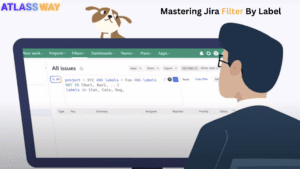
Jira Search By Label (JQL labels) : Project = XYZ AND labels in (“frontend”) AND Labels not in (“labelVaue1”, “labelValue2”, “labelValue100″…)
It’s not an ideal solution especially because any authorized user can add labels to an issue as long as the label field is available on the issue. Consequently, it’s easy to end up with a very large number of labels. The danger here is that the project can end up with numerous capitalization and spelling variations, e.g., login vs. Login, user vs. User, ready_for_UAT vs. ready_for_uat, etc. This can, in turn, render searching via labels inefficient and prone to error. Below, we’ll share some best practices for avoiding this situation.
Jira Manage Labels
-
- Editing and Deleting Labels: Labels can be edited or removed from an issue at any time. However, note that deleting a label from an issue does not remove it from the system. Labels that are no longer in use will eventually disappear from the auto-suggest list as they are phased out from issues.
-
- Bulk Change: If you need to add, replace, or remove labels from multiple issues at once, you need to create filters using JQL and then use “Bulk Change” it can take a long time.
How to Take advantage of the benefits of labels and minimize potential pitfalls
Colored Label Manager For Jira allow you to visualize and manage your Jira labels with at-a-glance quickness to save time and avoid mistakes by giving you integrated ease-to-use tools that improve your experience using labels and help you get the job done.
Option 1 :
- Filter issues that have one and only one label (see screenshot)
Option 2 :
- Define all your possible labels and restrict your label field
Colored Label Manager fields are smart fields that can be used either as a label or a select list fields , the project administrator can choose to :
Allow teams to define labels , empowering them to work independently and save time.
OR
- Restrict the label field, define needed labels and let the team us the field as select list or smart checklist.

Jira Manage Labels: How To Use Labels In Jira the right way!
Managing labels efficiently is key to maintaining a tidy Jira environment:
-
- Manage your labels per project or globally for better productivity
-
- Full range of customizations to manage already established Jira labels by enabling easy updates, label merge, rename and color choices.
-
- Manage your labels per project or globally for better productivity
-
- Using Labels In Jirafor Filtering and Searching: Take advantage of Jira Search By Label functionality to filter issues by labels.
-
- Jira Search Labels : Filter issues that have one and only one label
-
- Jira Search Labels : See used and unused labels (Trash)
-
- Using Labels In Jirafor Filtering and Searching: Take advantage of Jira Search By Label functionality to filter issues by labels.
There’s absolutely no coding required and certainly no need to learn Jira Query Language (JQL) for that matter.
-
- Say goodbye to label chaos and wasted time on creating complex Filters and using bulk edit to label batches of issues.
3 Fully customized reports based on labels:

Get deeper label usage insights in moments without leaving the app. This can be particularly useful for generating specific reports.
Best Practices for Using Labels in Jira
To maximize the effectiveness of Using Labels In Jira , consider the following best practices:
-
- Consistent Naming Convention: Establish a standard naming convention for labels to ensure consistency across the team. This reduces confusion and duplicates.
-
- Only add a label if the connection you’re trying to establish doesn’t already exist. For example, don’t use a label to indicate that an issue belongs to a particular epic.
-
- Always check to see whether a label already exists before creating it; remember, too, that it might simply be a question of spelling or case variation.
-
- Avoid using abbreviations unless they are widely understood, added in the description field and accepted by your team. This will, in turn, help avoid synonymsCreate new label fields: Top 10 Use Cases For Labels In Jira + Tips and manage them in one simple interface.
-
- Restrict your label field when it’s needed, use it as select list field and delegate management to the project administrator It’s a perfect fit for Definition of Done, Definition of Ready, and Acceptance Cr Follow the 11 Best Practices to use Jira Labels for Effective Project Management
Now you know how to use labels in Jira the right way. This will undoubtedly help you create simple but powerful classification and search tools for your projects. By following best practices and Using Labels In Jira judiciously, you can improve issue tracking, facilitate better communication within your team, and streamline your project workflows
Using labels in Jira the right way never was this easy! Get a free 30-day trial