✓ Identify inactive users with powerful filters and detailed insights.
✓ Automate license management to suspend inactive accounts and reclaim unused licenses.
✓ Keep your Jira instance clean by optimizing license usage and storage from a single place
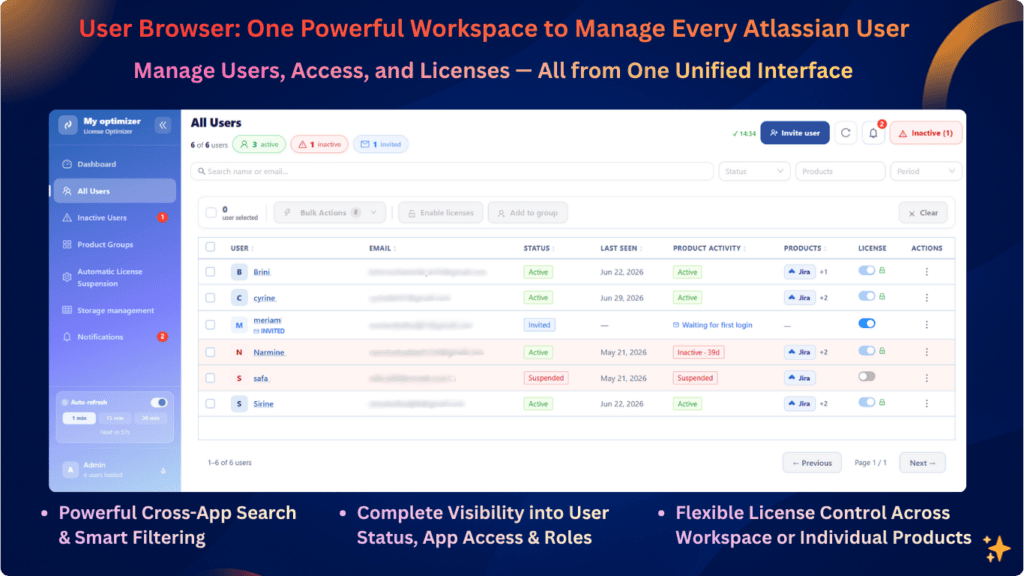
Centralize user management across Jira, Confluence, Assets, and more. Search and filter users instantly, monitor access and roles in real time, and manage licenses globally or per product .
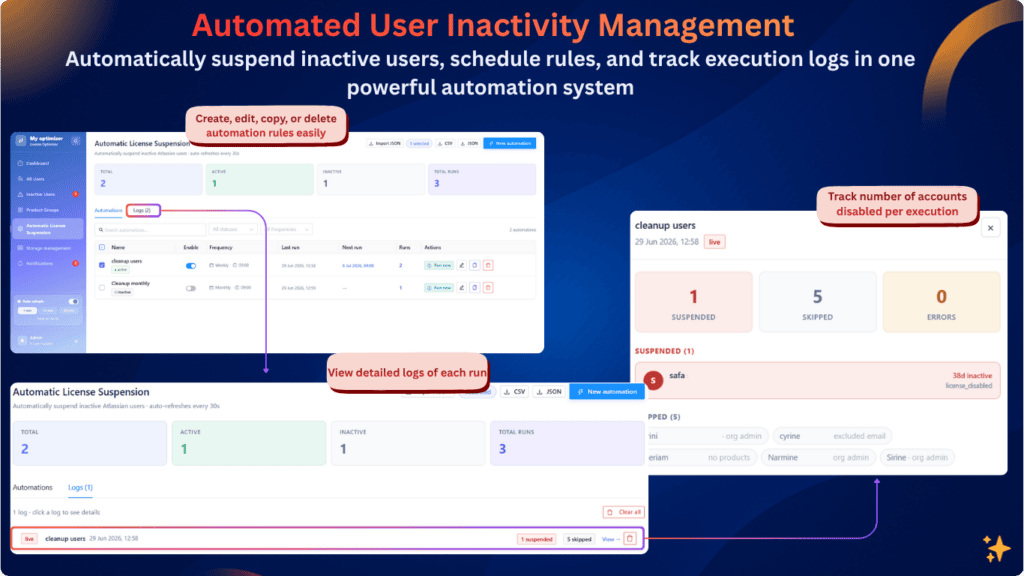
Automate user inactivity handling by defining rules that suspend users after a specified period without activity. Schedule executions daily, weekly, or monthly, or run them on demand.
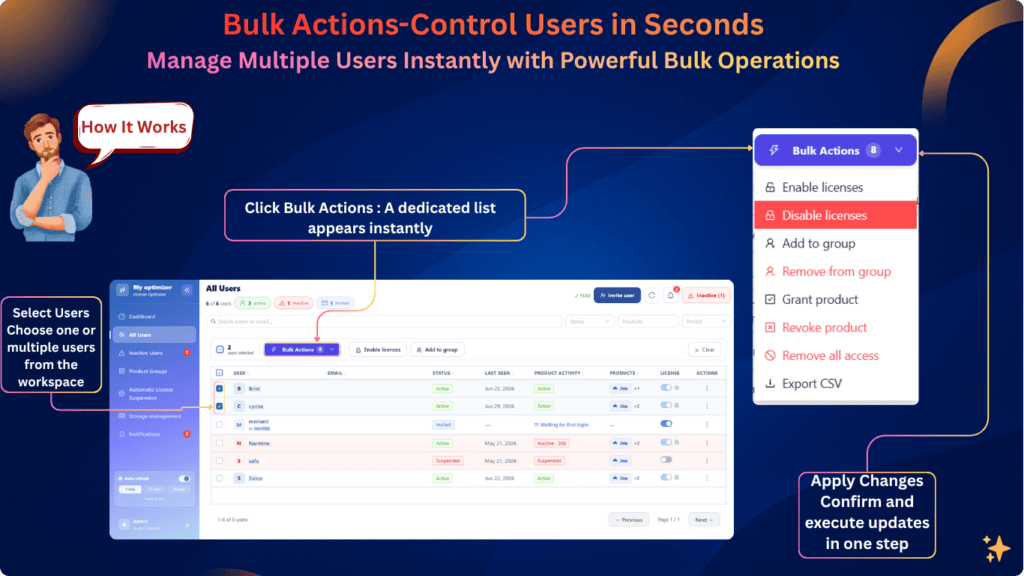
Select users, click Bulk Actions, and instantly open a smart action menu. Choose what you want to do enable, disable, assign, or revoke access and apply changes to multiple users at once with one click.
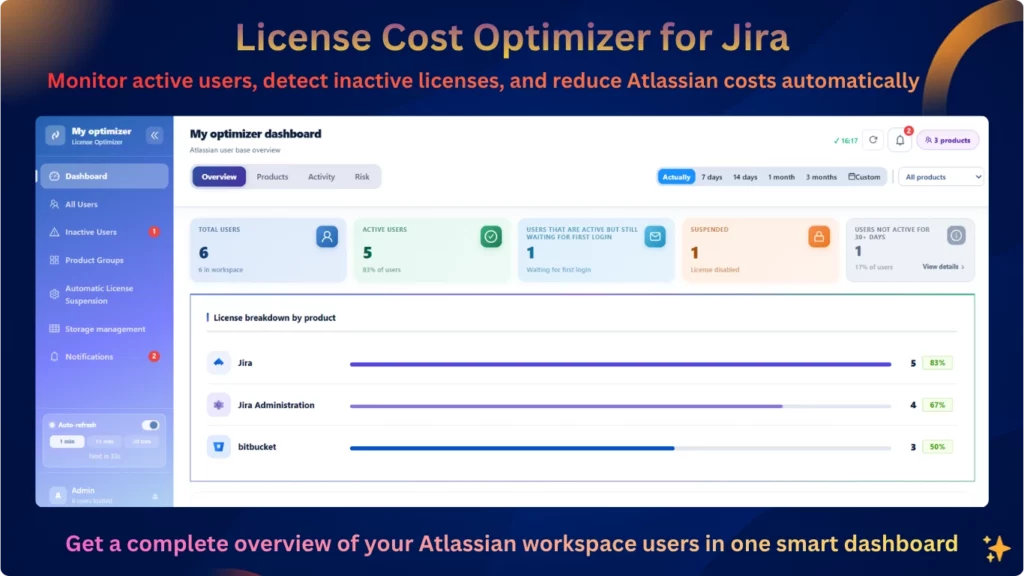
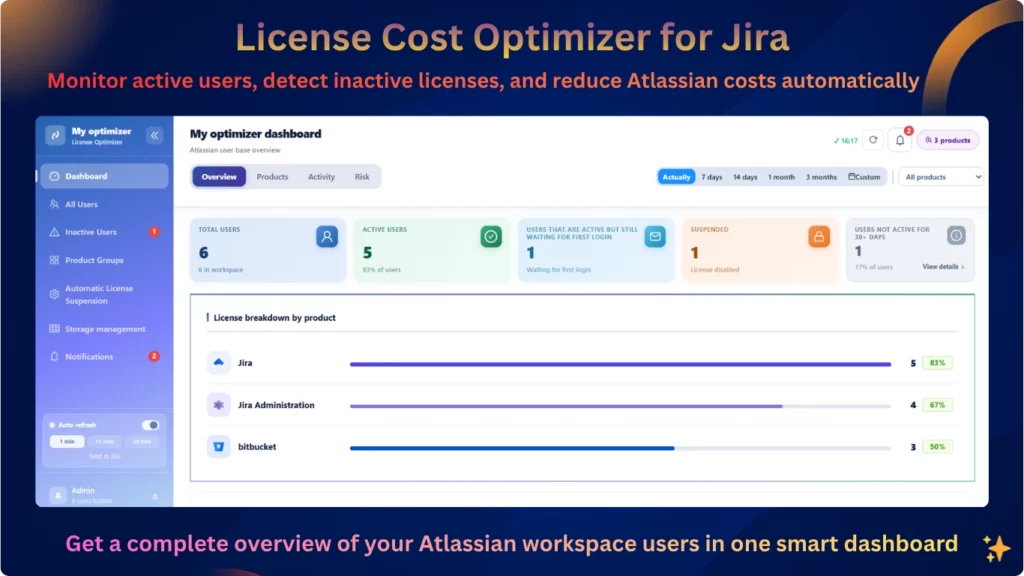
Get a real-time overview of users, licenses, activity, and product usage from one centralized dashboard. Quickly identify inactive users, unused access, and license optimization opportunities so you can make smarter decisions and reduce unnecessary costs.
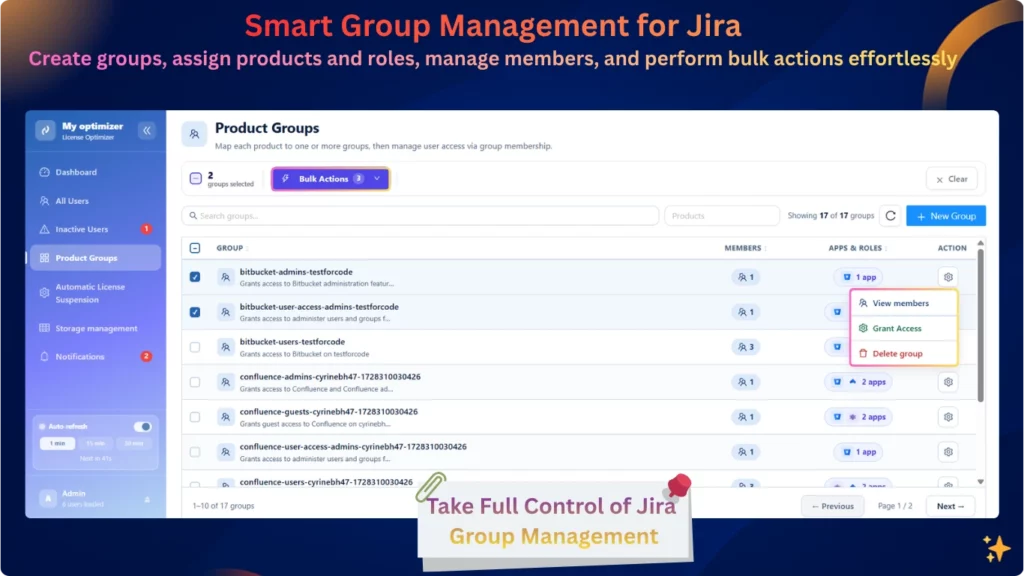
Create groups, assign product access, and apply permissions in bulk to simplify administration and maintain consistent access across your Atlassian organization.
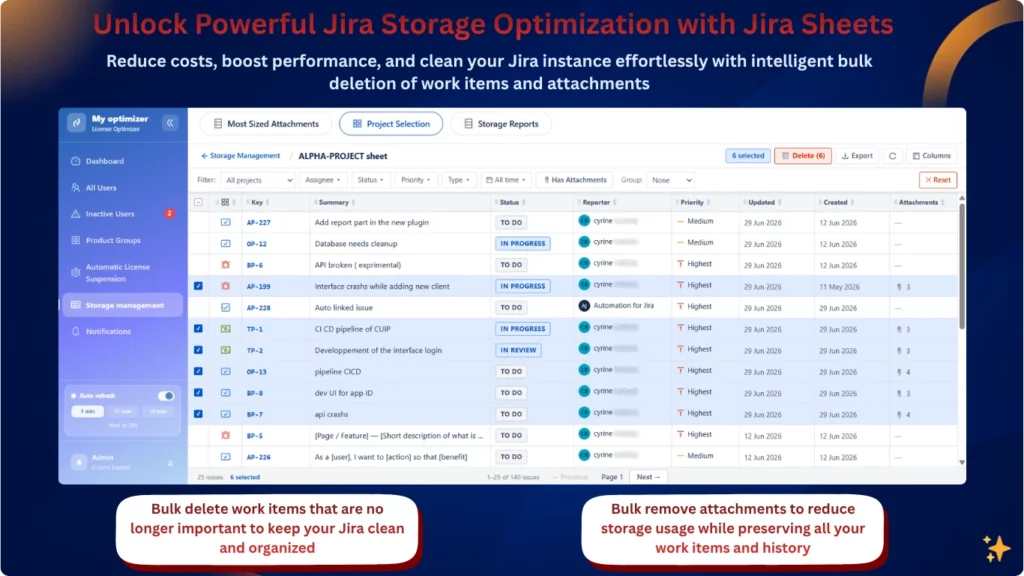
Identify your largest attachments, monitor storage usage, and quickly clean up unnecessary files. Use powerful filters and bulk actions to delete attachments or entire work items, helping your team free up storage and keep Jira organized.
License Cost Optimizer helps administrators monitor user activity, track license consumption, manage product access, identify inactive users, and optimize Atlassian license usage and costs from a centralized interface.
Yes. The Inactive Users page lets you identify users who have not been active for a defined period. You can set the inactivity period, with 30 days as the default, and filter users by product and last activity.
Yes. From the User Management page, you can view user profiles, edit users, manage group memberships, remove product access, or remove users from the organization. You can also perform these actions in bulk.
Yes. Select multiple users and use Bulk Actions to enable or disable licenses, add or remove users from groups, grant or revoke product access, remove all access, or export the selected data as a CSV file.
Yes. The Automation Rules feature allows you to create rules that automatically suspend users who have been inactive for a defined period. You can also exclude specific users and organization administrators from the automation.
Go to Automation Rules → Create New Automation. Define the automation name, inactivity period, exclusions, action, and schedule. You can choose to activate the rule immediately after saving.
Automation rules can run daily, weekly, or monthly. You can also configure the day of the week and execution time for scheduled rules.
Yes. Each automation rule includes a Run Now action, allowing you to execute the rule immediately instead of waiting for its scheduled run.
Yes. The Automation Logs provide execution details, including the automation name, execution date and time, number of suspended users, and number of skipped users. You can open a log to see suspended users, errors, skipped users, and the reasons they were skipped.

Yes. Product Groups Management allows you to create groups, link them to Atlassian products, assign roles, and manage group members.
Yes. The Attachment Storage Management feature helps administrators identify large attachments, monitor storage consumption, and manage attachments across Jira projects.
Yes. The Notifications section provides alerts for automation executions, errors, and large numbers of affected users.
Yes. The dashboard supports automatic refresh, keeping user activity and license information up to date. You can also manually refresh data on pages such as User Management and Product Groups .
Yes. The Export CSV action is available through bulk actions on the User Management and Inactive Users pages, allowing administrators to export user data for further analysis or auditing.