
Labels in Jira are flexible tags or keywords that you can add to issues to show whether they possess certain characteristics. They let you classify issues more flexibly and more informally than by assigning version numbers or components.
In this guide, you’ll learn:
-
What labels in Jira are and how they work
-
How to add and remove labels in Jira issues
-
How to manage Jira labels effectively
-
How to filter Jira issues by label
-
Best practices for scalable Jira label management
This article is designed for Jira users, project managers, and Jira administrators looking to improve Jira label management and avoid common pitfalls.
What are labels in Jira?
Labels in Jira are free-text identifiers that can be applied to issues to indicate shared characteristics such as status, topic, priority, or technical context.
Unlike components or versions:
-
Components define structured project areas
-
Versions group issues by release
-
Labels provide flexible, lightweight classification
Multiple labels can be applied to a single issue, making Jira ticket labels ideal for cross-cutting categorization that doesn’t fit neatly into existing fields.
Jira labels example: using labels in a Jira project
Consider the example of a fictional software company, Mob&Apps, which develops mobile applications.
Their Jira project includes components such as:
-
User Interface (UI)
-
Data
-
API
While components organize work at a high level, the team also needs to tag issues across components. This is where labels in a Jira project become useful.
Jira labels example:
-
ready_for_uat -
needs_review -
customer_request -
hotfix
By using Jira labels, Mob&Apps can group issues by readiness or context, regardless of component or epic.
Why labels are useful
Labels are searchable. For instance, you can search for issues that have been given a particular label. However, when searching, it’s important to note that labels are case-sensitive, and therefore, the text has to be an exact match in order for the search (and filters) to work as expected.
You can also click a label to jump to the Issue Navigator and see a list of all issues with the label.
Example
If Mob&Apps developers want to associate issues according to their statuses, even if the issues don’t belong to the same component, they can mark issues as “ready_for_UAT” or “needs_review” to be able to find them easily.
How to add and remove labels in Jira
Adding labels to a Jira issue
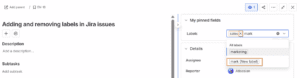
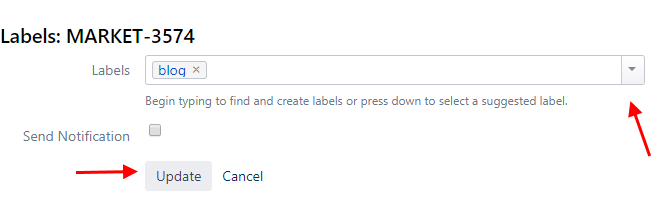
To add labels in Jira:
-
Open the Jira issue
-
Click the pencil icon next to the Labels field
-
Select an existing label or type a new one
-
Press Enter to add the label
You can add multiple labels at once by separating them with spaces.
Removing labels from a Jira issue
To remove a label:
-
Open the Labels field
-
Click the ✕ icon next to the label
-
Save the issue
If a label is removed from all issues, it will no longer appear in Jira’s label list.
Naming rules for Jira labels
Jira labels follow simple naming rules:
-
Labels cannot contain spaces
-
Use hyphens or underscores for multiple words, such as:
-
ready_for_uat -
ready-for-uat
-
-
Avoid inconsistent capitalization
Consistent naming is a key part of long-term Jira label management.
Managing Jira labels effectively
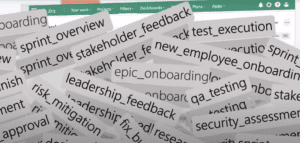
As Jira usage grows, label creation is often decentralized. Without clear guidelines, teams may end up with:
-
Duplicate labels
-
Spelling variations
-
Inconsistent capitalization
-
Unused or obsolete labels
Effective managing Jira labels ensures clean data, reliable filtering, and accurate reporting.
Strong Jira label management helps teams:
-
Improve issue discoverability
-
Reduce noise in searches and dashboards
-
Scale Jira usage sustainably
Jira label management risks
Without governance, Jira labels can quickly become difficult to manage.
Common examples include:
-
Loginvslogin -
user_authvsauthentication -
ready_for_UATvsready_for_uat
These inconsistencies make it harder to filter Jira issues by label, often resulting in incomplete or misleading search results.
Atlassian Expert good practices
To best take advantage of the benefits of labels and minimize potential pitfalls, here are some recommendations you can share with your team:
-
- Only add a label if the connection you’re trying to establish doesn’t already exist. (For example, don’t use a label to indicate that an issue belongs to a particular epic.)
-
- Always check to see whether a label already exists before creating it; remember, too, that it might simply be a question of spelling or case variation.
-
- Avoid using abbreviations unless they are widely understood and accepted by your team. This will, in turn, help avoid synonyms.
-
-
Use clear and consistent naming conventions
-
Do not create excessive numbers of labels
-
Regularly review and clean up unused labels
-
Following these guidelines keeps labels in Jira useful, reliable, and scalable.
When a Jira label manager becomes essential
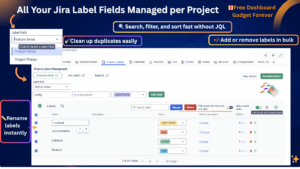
As teams and projects grow, manual control of labels becomes increasingly difficult. This is when a Jira label manager becomes essential.
A dedicated Jira label manager helps teams:
-
Manage Jira project labels centrally
-
Identify duplicate and unused labels
-
Improve label-based reporting
-
Overcome limitations of native JQL filtering
Effective Jira label management turns labels into a strategic tool rather than a maintenance burden.
From label chaos to clarity
Smart labeling leads to:
-
Cleaner Jira projects
-
Faster issue discovery
-
More accurate reporting
-
Better decision-making
With the right approach and tooling, Jira labels evolve from simple tags into a powerful organization and filtering system.
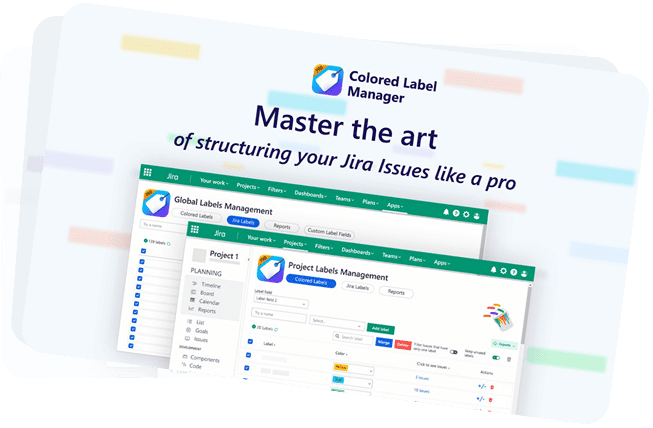
👉Start your free trial of Colored Label Manager for Jira and take full control of Jira labels today.
Now you know how to use labels in Jira the right way. This will undoubtedly help you create simple but powerful classification and search tools for your projects. We share tips and advice like this on our blog every week, and in our monthly newsletter, as well. Sign up so you never miss an article, and feel free to reach out to greatly increase your knowledge of Jira, Jira Service Management, Confluence, and the Atlassian Marketplace apps.
Frequently Asked Questions about Jira Labels and Label Management
What are labels in Jira?
Labels in Jira are free-text tags used to classify and organize issues across Jira projects. They help teams group and find issues flexibly without modifying components, epics, or versions.
How do I add and remove labels in Jira issues?
Labels can be added or removed directly from the Labels field on a Jira issue. Users can select existing labels or create new ones, and remove labels with a single click. As projects grow, managing labels consistently may require additional tools.
How do I filter Jira issues by label?
You can filter Jira issues by label using the Issue Navigator or JQL. Jira supports searching for issues with one or multiple labels, although advanced filtering and reporting often become complex in projects with many labels.
Why is Jira label management important?
Without proper Jira label management, teams often face duplicate labels, inconsistent naming, and unreliable search results. Structured management ensures cleaner projects, faster filtering, and more accurate reporting.
When do I need a Jira label manager?
A Jira label manager becomes useful when multiple users create labels, projects scale, or reporting based on labels becomes critical. Label management tools help standardize labels, prevent duplicates, and improve filtering accuracy.
Can a Jira label manager restrict label creation?
Yes. A Jira label manager can help control or restrict label creation, define allowed labels, and centralize label governance—features that are not fully available in native Jira.
Can Jira labels be managed across multiple projects?
Native Jira provides limited control at scale. Using a Jira label management solution allows teams to manage labels consistently across multiple Jira projects and teams.
Can Jira labels replace components or epics?
No. Labels should complement structured Jira fields such as components, epics, and versions. They are best used for flexible classification when no dedicated field exists.
How can teams clean up existing Jira labels?
Teams can manually remove unused or duplicate labels, but this process becomes difficult at scale. Label management tools help identify unused labels and standardize existing ones more efficiently.
What are best practices for managing Jira labels long-term?
Best practices include using consistent naming conventions, limiting unnecessary labels, reviewing label usage regularly, and using a Jira label manager to maintain consistency as projects grow.