
Managing dependencies in Jira is one of the most important and most frustrating parts of project planning.
Teams often struggle to track, visualize, and manage Jira dependencies, especially across multiple projects and teams.
Whether you’re coordinating multiple teams, managing releases, or tracking cross-project blockers, you’ve probably asked yourself:
- “Where can I see all dependencies clearly?”
- “Why is Jira’s dependency map so messy?”
- “How do I visualize dependencies in Jira?”
- “Is there a simple way to track blockers?”
If you’ve struggled with Jira’s default linked issues view, you’re not alone.
Out of the box, Jira allows you to create dependencies but it does not make them easy to understand, analyze, or maintain at scale.
This complete guide explains how dependency management works in Jira, why Jira’s native tools fall short, and how to track, visualize, and map dependencies clearly inside Jira including across multiple projects.
1. What Are Dependencies in Jira?
A dependency represents a relationship where one issue relies on another.
Jira uses link types to express this:
- blocks / is blocked by
- depends on / is depended on by
- relates to
- duplicates / is duplicated by
These relationships help you understand:
- What work is currently blocked
- Which tasks must be completed first
- How different teams impact one another
- Which issues form a sequence or workflow
But Jira’s default UI does not make this easy to see.
2. How Jira Handles Dependencies by Default
By default, dependencies in Jira appear in the Linked Issues section of an issue.
To create a dependency in Jira:
- Open an issue
- Scroll to Linked Issues
- Choose a link type (blocks, relates to, depends on, etc.)
- Search for the target issue
- Add the link
This works… but only on a small scale.
As soon as you have:
- Multiple teams
- Several epics
- Long release cycles
- Dozens of linked issues
…the default linked-issue list becomes difficult to understand.
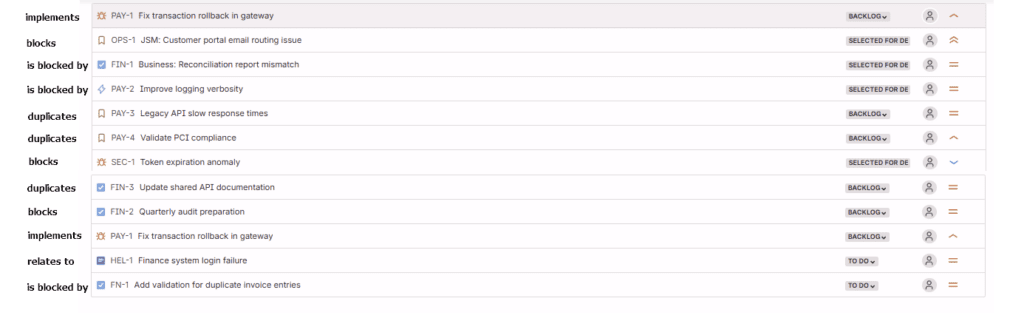
And when link types are not controlled per project, the problem becomes worse:
❌ teams use different link types
❌ relationships are inconsistent
❌ direction gets reversed
❌ dependencies become messy
This is where Jira starts breaking down.
3. Why Jira Makes Dependency Tracking Hard
Let’s look at how Jira “shows” dependencies today.
When you open Jira’s Timeline view (in Jira Software Premium), dependencies appear as long arrows connecting issues:

This looks OK at first…
But as soon as you have more than a few dependencies, you get:
❌ Criss-crossing spaghetti arrows
❌ No clear direction
❌ No grouping by link type
❌ No clue whether this is “blocks” or “relates to”
❌ No ability to fix or reorganize links from here
❌ Requires being in the timeline not in the issue view
This is why Jira dependency tracking is so difficult.
The timeline (Formerly Roadmap) view is designed for planning, not dependency analysis.
4. Why Jira’s Timeline Dependency Map Isn’t Enough
Jira’s timeline (Formerly Roadmap) arrows are not a real “dependency map” because they don’t show:
- Hierarchy
- Structure
- Flow
- Link semantics
- Grouped relationships
- Cross-project visibility
- Root cause blockers
- Complex chains
They simply show: “this issue points to that issue.”
That’s not enough for teams that actually rely on dependency management.
When you look at even a small set of dependencies in Jira, the arrows cross everywhere. It’s difficult to see what depends on what and almost impossible to understand why.
5. Popular Ways Teams Try to Manage Dependencies in Jira (and Why They Fall Short)
Before teams look for better dependency visualization, most try to manage Jira dependencies using a combination of native Jira features and external tools.
These approaches can work for small projects, but they quickly break down as soon as dependencies become complex, cross-team, or cross-project.
Below are the most common ways teams attempt to manage dependencies in Jira and their limitations.
5.1 Jira Timeline (formerly Roadmap)
Jira’s Timeline view displays dependencies as arrows between issues on a schedule.
While this can help with high-level planning, it is not designed for dependency analysis:
- Dependency arrows quickly overlap and criss-cross
- No grouping or semantics for different link types (blocks, depends on, relates to)
- Hard to follow long or complex dependency chains
- No way to fix or reorganize dependencies from the view
- Requires leaving the issue and switching context
Timeline views help answer when work happens, not what is blocking what.
5.2 Default Linked Issues View
Inside an issue, Jira shows dependencies as a flat list under Linked Issues.
This approach becomes difficult to use as soon as the number of dependencies grows:
- All relationships are mixed together
- No hierarchy, structure, or flow
- No visual distinction between blockers and non-critical links
- Cross-project dependencies look identical to local ones
- No way to reorder, group, or clean up links efficiently
As dependencies increase, this view becomes noise instead of insight.
5.3 Spreadsheets and Manual Tracking
Some teams export Jira data into spreadsheets to track dependencies more easily.
This introduces new problems:
- Data becomes outdated immediately
- Manual synchronization overhead
- No live Jira context
- No visual understanding of dependency relationships
- High risk of missing critical blockers
Dependencies change constantly static documents cannot keep up.
5.4 Confluence Diagrams and Whiteboards
Another common solution is documenting dependencies using diagrams in Confluence or external whiteboard tools.
These approaches typically suffer from:
- Manual updates
- No real-time connection to Jira
- No validation or governance of dependencies
- No visibility inside the Jira issue where work actually happens
Over time, these diagrams drift away from reality.
5.5 Why These Approaches Fail at Scale
All of these methods share the same underlying problem:
➡ Dependency visualization is separated from the Jira issue itself.
This forces teams to:
- Switch context between tools
- Maintain duplicate sources of truth
- Rely on outdated information
- Spend time managing documentation instead of dependencies
In large Jira environments, this quickly becomes unmanageable.
5.6 Why Dependency Visualization Must Live Inside the Issue
Dependencies are most effective when they are:
- Visible where work is done
- Clear and understandable at a glance
- Structured instead of flat
- Governed by consistent rules
- Easy to review and fix immediately
This is why teams move beyond Jira’s default dependency views and look for ways to visualize and manage dependencies directly inside the issue.
6. The Hidden Problem: Cross-Project Dependencies in Jira
Most real-world Jira installations include:
- Multiple teams
- Multiple projects (Software, Service Management, Business)
- Shared components
- Release trains
- Shared epics and services
As a result, many dependencies do not live in a single project.
Issues are often:
▸ blocked by work in another project
▸ dependent on another team’s backlog
▸ part of flows that span several projects
Jira allows you to create these cross-project dependencies but it does not make them easy to understand.
Inside the issue, linked dependencies from other projects are mixed into a flat list, with no structure, no grouping, and no clear flow.
This makes dependency management risky:
- Blockers get missed
- Releases slip
- Work is duplicated
- Teams blame one another
- Roadmaps become unreliable
This is why cross-project dependency visualization in Jira remains such a common challenge for large teams.
Jira lets you link across projects but it doesn’t help you see those dependencies clearly where teams actually work: inside the issue.
7. The Better Way: Visualize Dependencies Directly Inside the Issue
Instead of relying on timeline arrows or scrolling through linked issues, the easiest way to understand dependencies is to visualize them in context, directly inside the issue.
This is where Advanced Link Manager provides a dramatically better experience.
You get:
✔ A clean, structured dependency view
✔ Graph visualization
✔ Matrix visualization
✔ Grouped link blocks
✔ Color coding
✔ Warnings for wrong dependencies
✔ Bulk actions (remove / change link type / reorder)
✔ Cross-project visibility
✔ And all of this inside the issue, no extra pages
This addresses the core limitations of Jira’s native dependency management.
Bonus: Keep Teams Aligned With Dependency Rules
To ensure consistent dependency structures across projects, Advanced Link Manager includes:
- Link-type restrictions per project, Project Admins can control which link types are allowed and define which work item types may be linked with each link type, ensuring teams create only valid, consistent dependencies.
- Warnings for unauthorized link types, If someone uses a link type that isn’t allowed, the app flags it and shows how to correct it in seconds.
- Automatic flagging of historical inconsistencies
- Advanced filtering to isolate blockers, dependency flows, and cross-project risks
→ This keeps dependencies clean and standardized, even across large teams.
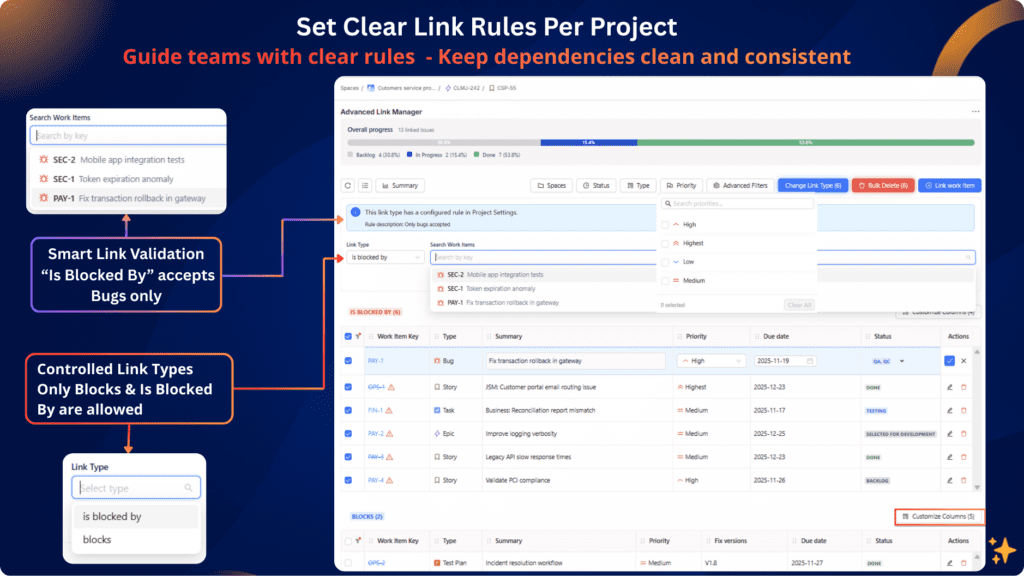
8. Visualize Dependencies Using Advanced Link Manager
Here’s what you can do immediately inside the issue:
🟦 Enhanced View Organized, Grouped, Clear
Your dependencies are grouped and color-coded by link type:
- blocks
- is blocked by
- depends on
- relates to
This alone makes dependency tracking 10× easier.
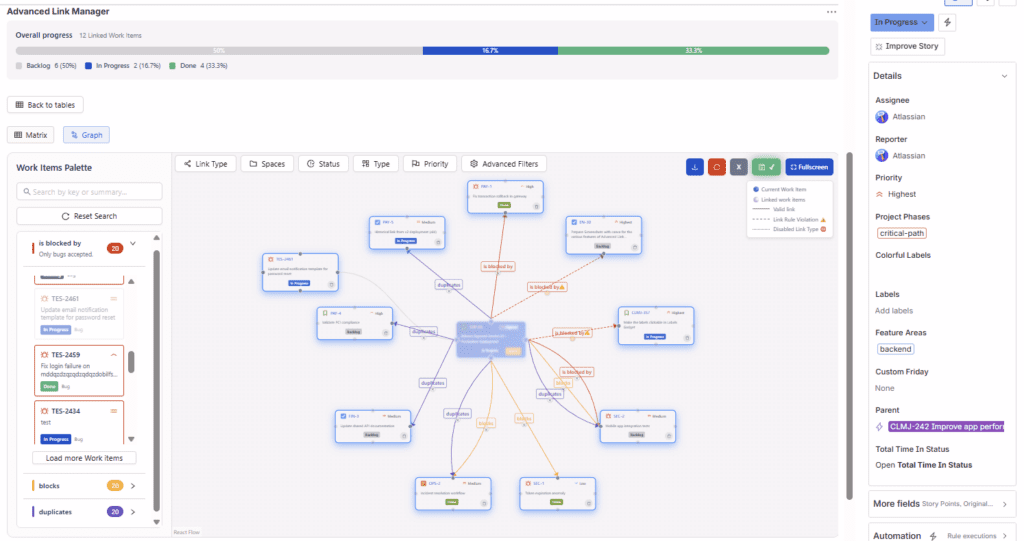
🟪 Graph View A True Dependency Map in Jira
See a clean, interactive graph of:
- parent → child flows
- blockers
- dependencies
- cross-project links
No spaghetti. A real map.
🟩 Matrix View Scan Large Dependency Sets Quickly
This view is ideal for:
- large projects
- multiple epics
- complicated releases
- program-level dependency reviews
It allows teams to scan blockers like a spreadsheet but with Jira integration.

9. Track, Map, and Manage Dependencies Without Leaving the Issue
This is your app’s biggest advantage over every Jira dependency tool:
⭐ You never leave the issue view.
⭐ All visualizations live inside the work item.
⭐ No context switching.
⭐ No separate dashboards.
⭐ No confusing navigation.
It feels like Jira finally has a built-in dependency management system one that should have existed all along.
10. Best Practices for Managing Dependencies in Jira
To keep dependencies clean and actionable:
- Use consistent link types
- Review dependencies every sprint
- Avoid long chains of blockers
- Visualize often (graph and matrix views)
- Fix incorrect link types immediately
- Highlight cross-project blockers early
- Avoid “relates to” for critical paths
These best practices become effortless with proper visualization.
11. Conclusion: Jira Needs Better Dependency Visualization Here It Is
Jira’s default tools let you create dependencies, but they don’t let you understand them.
No link-type control or project-level governance in Jira.
Linked issue lists are flat and unstructured.
Timeline arrows are confusing.
To manage dependencies effectively, teams need:
- clarity
- structure
- visualization
- organization
- consistency
- inside-the-issue access
Advanced Link Manager gives you exactly that.
You can now map, track, and visualize dependencies clearly without leaving the issue view.
👉 Try Advanced Link Manager for Jira (free trial) and visualize your dependencies directly inside your Jira issues.