
Manage Jira Labels
Managing Jira Labels is essential for teams aiming to keep their workflows efficient and their projects organized. Labels allow you to organize, filter, and search for issues quickly, making them a powerful tool in Jira’s ecosystem. In this guide, we’ll explore how to manage Jira labels effectively, the role of a Jira label manager, and tips to streamline your project management processes.
This guide is based on real-world Jira instances with large numbers of projects, issues, and labels. It reflects best practices used by Jira administrators and teams who manage labels at scale.
What Are Labels in Jira?
Labels are flexible, text-based tags that can be assigned to issues, allowing users to group related items for better organization and easier navigation. Unlike custom fields, labels do not require predefined options, offering users the freedom to tag issues as needed. This flexibility makes them an essential tool in managing workflows effectively.
The benefits of using Jira labels include simplifying issue categorization, improving search functionality through Jira Query Language (JQL), and improving team collaboration by providing additional context to issues. These features ensure that labels become a key component in maintaining a well-organized and efficient project environment.
Why Manage Jira Labels Properly?
While labels are easy to use, improper management can lead to chaos. Inconsistent naming, repetitious labels, or overuse can clutter your Jira environment and reduce productivity. Efficient management of Jira Labels provides the following benefits:
- Consistency: Prevents duplicate or irrelevant labels.
- Scalability: Supports large projects with numerous issues.
- Ease of Reporting: Helps create meaningful reports and dashboards.
Who Should Manage Jira Labels?
In small teams, Jira labels are often left completely open, allowing anyone to create new labels. While this flexibility is useful early on, it can become problematic as projects and teams grow.
In larger or more mature Jira instances, label management is usually shared between:
- Project administrators, who define strategic or standardized labels
- Teams, who apply labels during daily work
- Jira administrators , who periodically review and clean up unused or duplicated labels
Defining clear ownership for Jira label management helps prevent label sprawl while preserving flexibility for teams.
Limitations of Native Jira Label Management
Although Jira labels are powerful, Jira does not provide a central interface for managing them. By default, administrators cannot easily:
- View all labels used across projects
- Identify unused or rarely used labels
- Merge duplicate or inconsistent labels
- Control who can create new labels
As a Jira instance grows, these limitations make label management increasingly difficult without additional tools or regular manual audits.
Steps to Manage Jira Labels
- Adding Labels to Issues
Adding labels to issues is a clear and precise process. Open the specific issue you want to tag, locate the Labels field within the issue details, and either type a new label or select an existing one from the dropdown menu. Once you save the changes, the label will be applied. To make labels more effective, use descriptive and specific names. For example, opt for “UrgentBug” rather than a generic “Bug” label to indicate criticality.
- Editing Labels in Jira
To edit an issue’s labels, open the issue and click on the pencil icon next to the Labels field. Modify the labels as needed and save your changes. It’s advisable to train your team to follow standardized naming conventions for labels. For instance, decide whether to use hyphens, underscores, or camel case when naming multi-word labels to maintain consistency.
- Bulk Managing Jira Labels
Jira offers bulk label management capabilities, which can be particularly useful when replacing outdated labels or applying changes across multiple issues. To do this, use the Search Issues feature with JQL to filter the relevant issues. Then, select the issues, click Tools > Bulk Change, choose the Edit Issues operation, and update the Labels field accordingly. This feature is a time-saver for large-scale updates.
- Using Jira Label Manager Plugins
While Jira’s built-in label management functionality is limited, plugins like Colored Label Manager for Jira or Label Organizer can enhance your capabilities. These tools allow you to perform bulk deletions of unused labels, merge duplicates, and view all project labels in a single location. With these advanced features, you can maintain a cleaner and more organized label structure.
Because of these limitations, many teams rely on Jira label management plugins to maintain consistency and visibility at scale.
Best Practices for Managing Jira Labels
- Define a Labeling Strategy
Establishing a clear labeling strategy is crucial. Collaborate with your team to agree on guidelines, such as using short and descriptive labels and avoiding labels with overlapping meanings (e.g., “Critical” and “High-Priority”). A well-defined strategy reduces confusion and improves label efficiency.
- Review and Clean Up Regularly
Conduct periodic audits to review and clean up labels. Remove duplicative or unused tags to ensure the system remains organized and functional. This habit prevents label sprawl and maintains a tidy Jira environment.
Common Challenges in Managing Jira Labels
- Label Sprawl
Uncontrolled creation of too many labels can lead to clutter and make it difficult to locate relevant ones. Address this issue by regularly auditing labels and using plugins to merge duplicates or delete unused tags.
- Inconsistent Labeling
When team members create variations of the same label, such as “BugFix” and “Bug-Fix,” it disrupts consistency. Implement standardized naming conventions and train your team on proper label usage to solve this.
Tools and Plugins for Label Management
Several tools can simplify label management for teams handling extensive label usage:
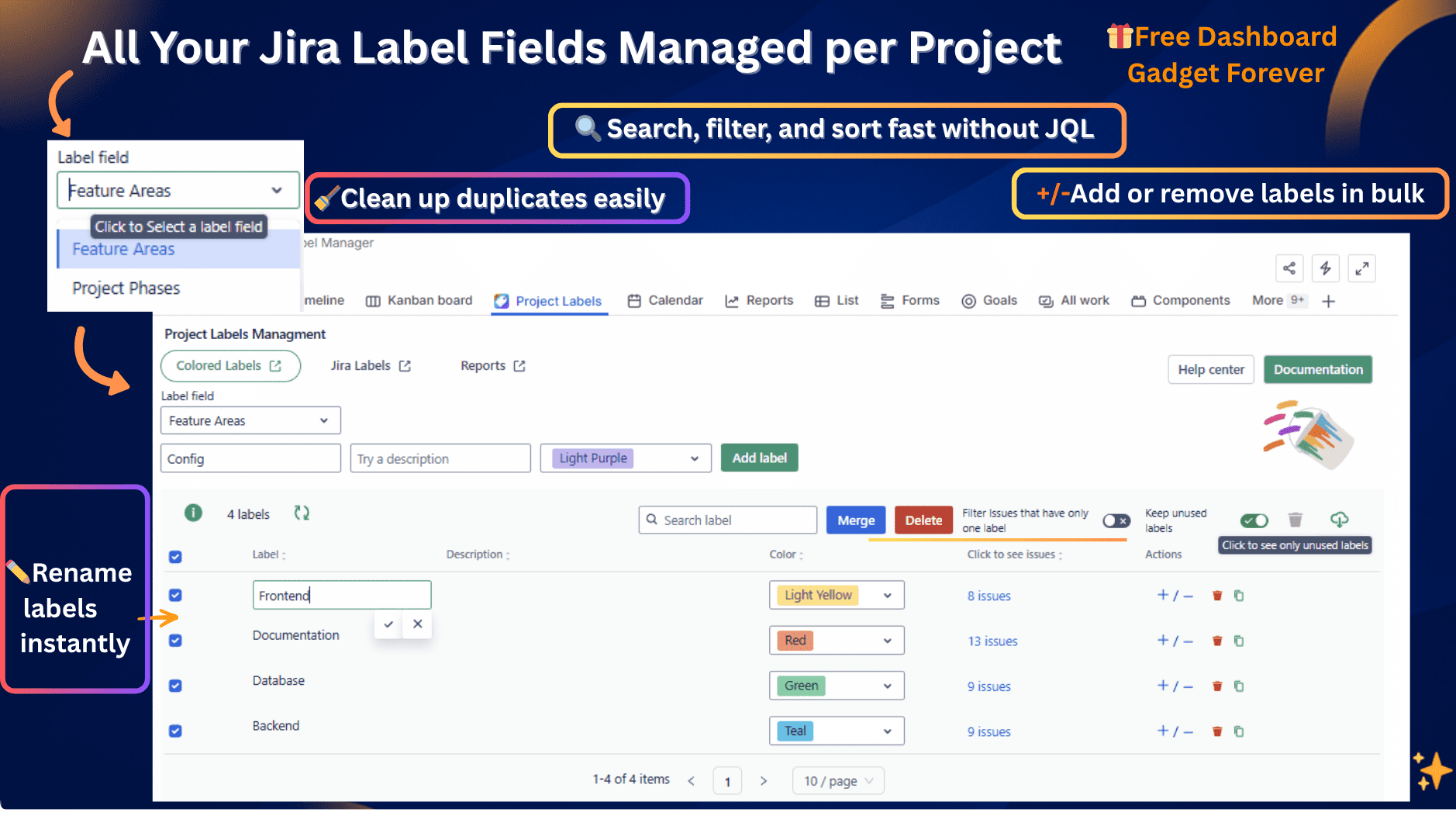
- Colored Label Manager for Jira – Pro: Offers bulk actions and cleanup features.
- Label Organizer for Jira: View and organize all your labels
These tools are valuable for large-scale projects, saving time and minimizing errors in label management.
Advanced Jira Label Management Use Cases
Well-managed Jira labels enable advanced use cases such as:
- Identifying work items with only one label applied
- Finding and removing unused or deprecated labels
- Grouping issues by label combinations for dashboards
- Improving reporting accuracy across multiple projects
- Cleaning historical data after team or project restructuring
These use cases highlight why consistent label management is critical for long-term Jira scalability.
Conclusion
As Jira instances grow, label management shifts from a convenience to a necessity. Without structure, labels quickly lose their value and reduce reporting accuracy and search efficiency.
Manage Jira Labels is important for maintaining an organized and efficient workflow. You can streamline your label management process by executing a clear strategy, leveraging bulk management features, and using plugins where necessary. Whether you’re a small team or a large business, proper label management assures that Jira remains a powerful tool for collaboration and productivity.
With tools like Colored Label Manager and regular audits, you can ensure your Jira environment stays clean and effective. Start managing Jira labels the right way today!
FAQ – Managing Jira Labels
❓ What is the purpose of labels in Jira?
Jira labels are used to tag and group related issues across projects. They help teams quickly filter, search, and organize work items without relying on rigid field structures. When managed correctly, labels improve navigation, reporting, and collaboration.
❓ Is there a limit to how many labels an issue can have in Jira?
No, Jira does not enforce a strict limit on the number of labels per issue. However, assigning too many labels can reduce clarity and reporting value. Best practice is to use only meaningful labels that serve a clear organizational or reporting purpose.
❓ Can Jira labels be standardized across projects?
Out of the box, Jira does not offer centralized control over label creation or standardization. Teams usually rely on internal guidelines, regular audits, or dedicated Jira label management plugins to enforce consistency across projects.
❓ How do I find issues with specific labels in Jira?
You can search for issues with specific labels using Jira Query Language (JQL). Labels can be combined with other criteria such as project, status, or assignee to build precise searches and dashboards.
❓ Why do Jira labels become messy over time?
Label sprawl typically happens when:
- multiple users create similar labels with different naming styles
- no ownership or governance is defined
- unused labels are never cleaned up
Regular reviews and clear naming conventions help prevent this issue.
❓ Can I delete or merge labels in Jira?
Jira does not provide a built-in way to delete or merge labels globally. Labels are removed only when they are no longer used by any issues. For large Jira instances, plugins are commonly used to identify unused labels and consolidate duplicates.
❓ Are Jira labels suitable for reporting?
Yes, Jira labels can be used effectively in reports and dashboards when applied consistently. Poorly managed labels, however, can lead to inaccurate or misleading reports, which is why governance and cleanup are important.
❓ When should a team use a Jira label manager?
A Jira label manager becomes essential when:
- the instance has many projects or teams
- label duplication becomes frequent
- reporting accuracy matters
- administrators need visibility into label usage
In these cases, dedicated tools help maintain structure and scalability.