
To make these operations easier, Advanced Link Manager for Jira introduces a set of powerful actions directly within the work item view. These capabilities allow users to do more with their existing work items, reduce repetitive tasks, and maintain relationships across their projects without having to rebuild everything manually.
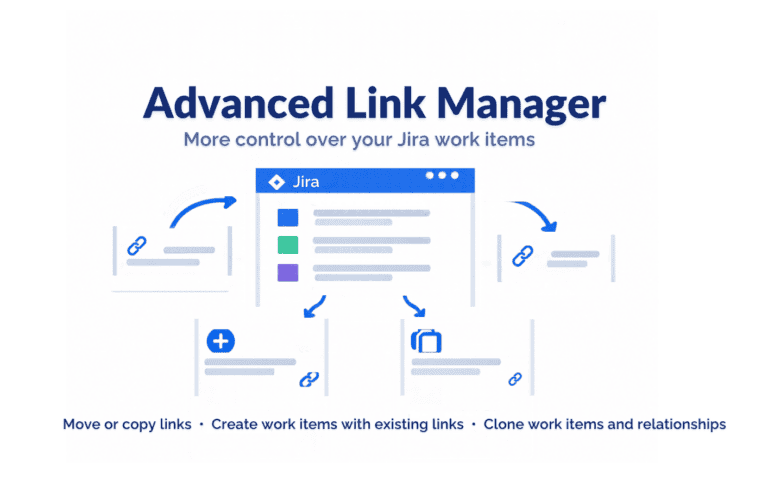
Work item relationships often need to evolve alongside your projects. A work item may be reassigned, reorganized, or replaced, and its existing links may need to follow it.
Instead of manually recreating each relationship, Move / Copy Links gives you a straightforward way to manage multiple links at once.
You can:
Move links from one work item to another when relationships need to be transferred.
Copy links to another work item while keeping the original relationships intact.
Select specific links to move or copy, giving you full control over which relationships are affected.
Choose the destination work item using its key or summary.
Whether you are reorganizing project structures, transferring dependencies, or reusing existing relationships, this action helps you manage links without unnecessary manual work.
Creating a new work item often means repeating information that already exists elsewhere in Jira. You may need to reproduce field values, establish the same dependencies, or create several similar work items.
With Create Work Item with Current Links, you can use an existing work item as a starting point and create new work items while reusing its information and relationships.
The feature gives you control over what gets carried over:
Choose the destination project and work type: Create work items in the project that best fits your needs, using a supported type such as Task, Bug, or Story.
Reuse existing field values: Select which fields to carry over, including Priority, Labels, Due Date, Start Date, Assignee, Reporter, Fix Version, and Components.
Customize the summary: Start with the original work item’s summary and adapt it to the new context.
Preserve relevant relationships: Select the existing links you want to associate with the newly created work items.
Create multiple work items at once: Specify the number of work items to generate.
This is particularly valuable when teams work with recurring tasks, similar deliverables, or multiple work items that share common dependencies.
Sometimes, duplicating a work item is not enough. The original may have several related work items, subtasks, and dependencies that are just as important as the work item itself.
The Clone action provides greater flexibility by allowing you to decide which parts of the original work item and its relationships should be reproduced.
You can customize the cloning process through several options:
Customize the clone summary: Use the default Clone - [Current Work Item Summary] format or enter your own summary.
Create a clone relationship: Automatically link the new work item to its original using a clone link.
Clone selected links: Reproduce the relationships you want to preserve from the original work item.
Clone subtasks: Select which subtasks should be included in the cloned work item.
Clone subtask links: Preserve selected relationships associated with the cloned subtasks.
Create multiple clones: Specify how many copies you need.
This level of control is especially useful when duplicating complex work items, reusing established work structures, or preparing similar sets of work for different projects or teams.
All these capabilities are available directly from the work item view through More actions (•••) → Advanced Link Manager.
Instead of navigating between work items, manually recreating relationships, or repeating the same operations, you can manage links, create related work items, and clone existing structures from one convenient place.
With these new Work Item Actions, Advanced Link Manager makes Jira work item management more flexible and efficient, giving teams greater control over how their work items are connected, reused, and organized.
Ready to do more with your Jira links?
Discover Advanced Link Manager for Jira and explore a smarter way to manage your work item relationships.
Looking for more ways to optimize your Jira experience? Explore our full range of Atlassway apps and discover powerful solutions designed to simplify workflows, improve productivity, and help you get more from Jira